Connect Your Shopify Store
Connect a Shopify store to SuperDS in about three minutes by creating your own app in the Shopify Dev Dashboard and pasting its Client ID and Client secret.
How the connection works
SuperDS publishes products to Shopify through an app that you create in your own Shopify account. You own the app, you choose what it can access, and you can remove it at any time from your Shopify admin.
The app needs:
- Products: to publish your listings and update their prices
- Publications: to show a published product in your Online Store
- Inventory and locations: to set stock, and mark an item out of stock when the supplier runs out
- Orders: so your sales show up in SuperDS ready to fulfil
SuperDS never sees your Shopify password or your payment details.
You need:
- The store owner login for your Shopify store
- A SuperDS account with a Shopify store added (pick Shopify when you create the store)
1. Create the app
Open dev.shopify.com/dashboard and log in with the account that owns your store.
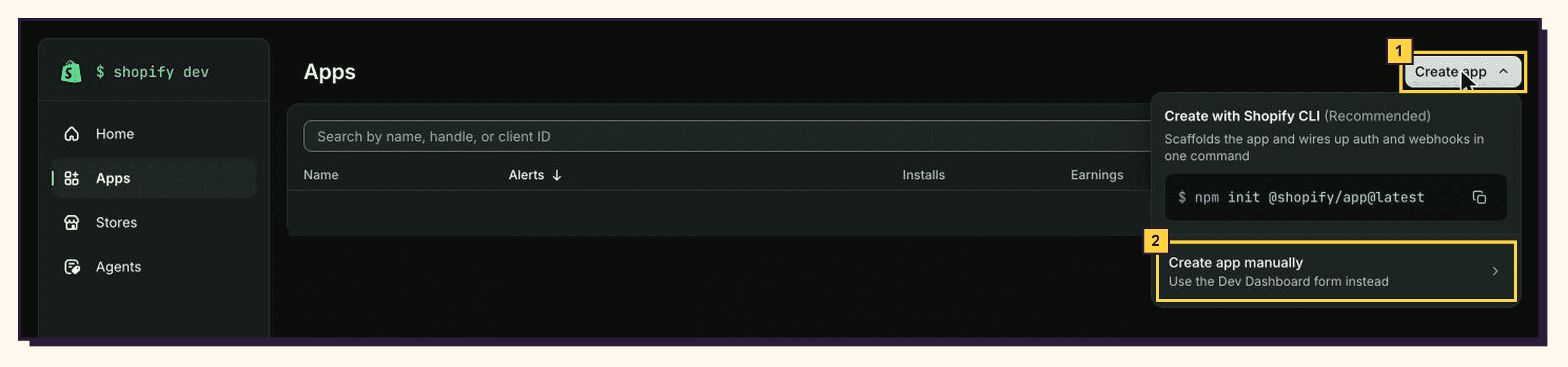
Go to Apps, click Create app, then Create app manually.
2. Name it and give it access
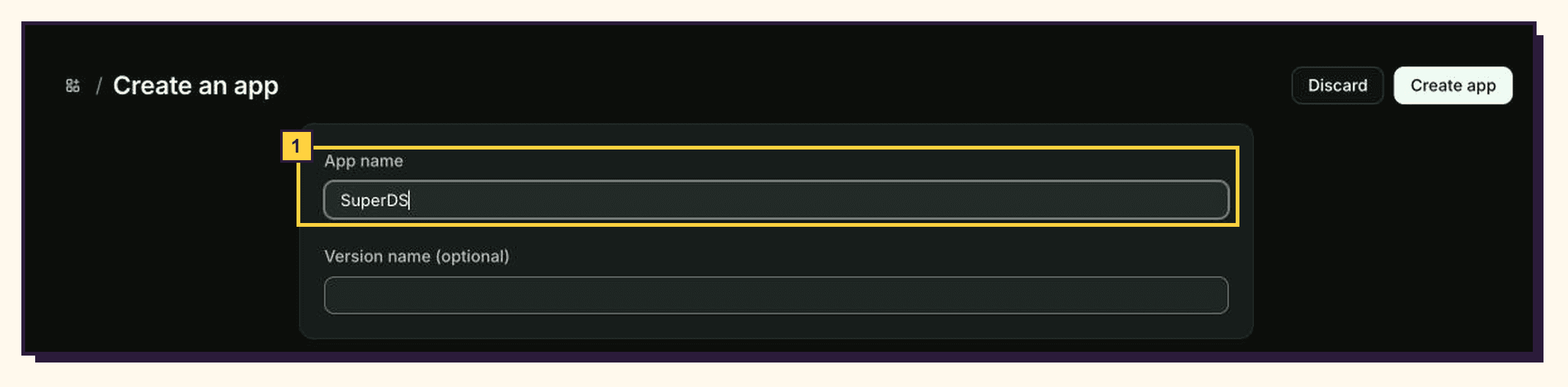
Type any name, for example SuperDS.
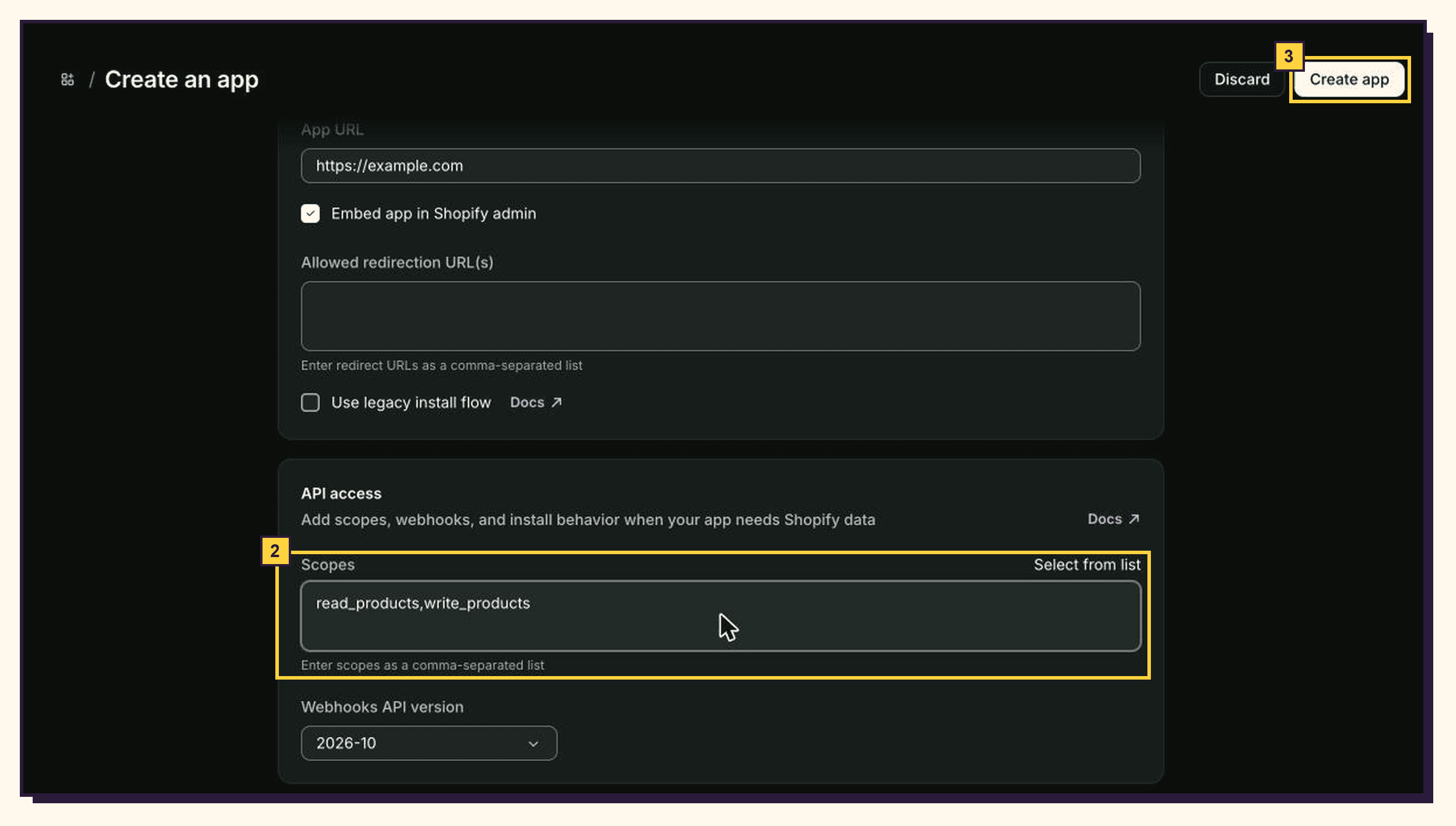
Scroll down to API access. In Scopes, paste this line exactly:
read_products,write_products,read_orders,write_inventory,read_locations,write_publications
Leave every other field as it is and click Create app.
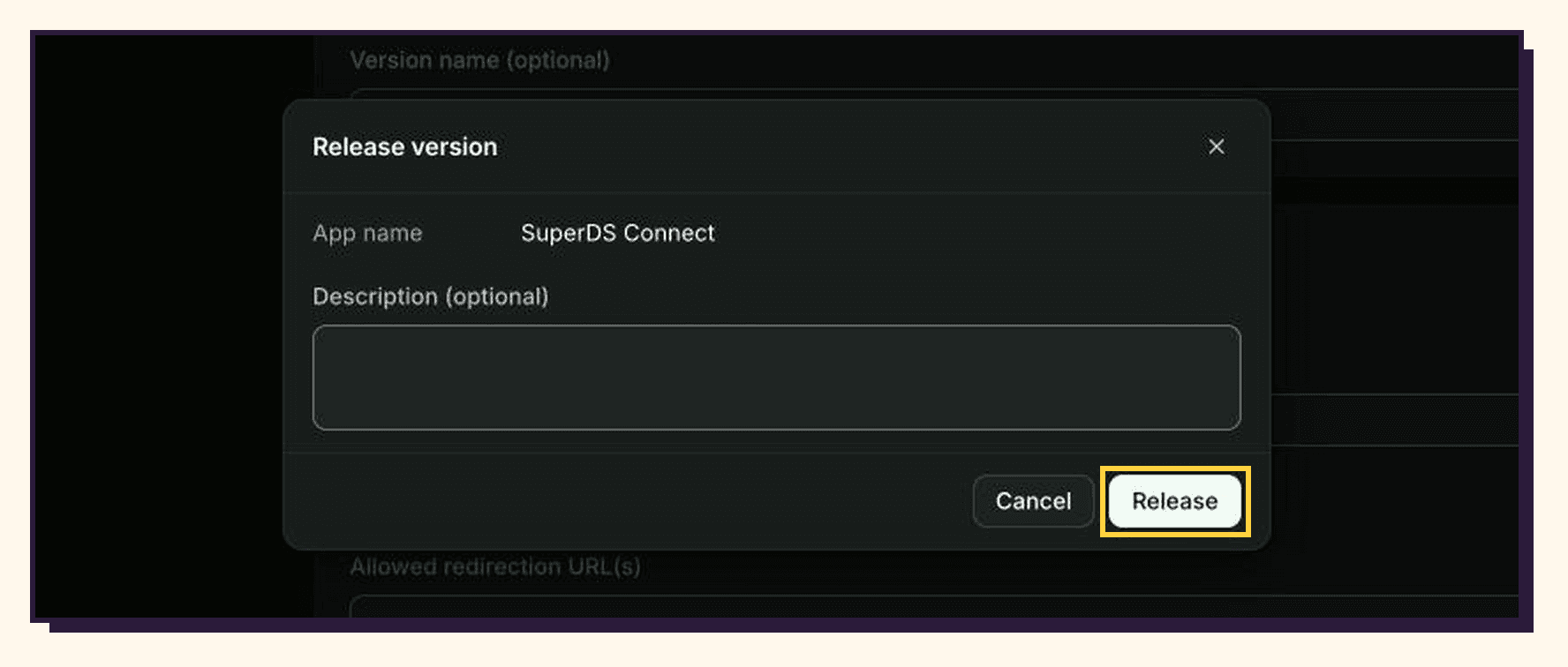
A Release version window opens. Click Release.
3. Install the app on your store
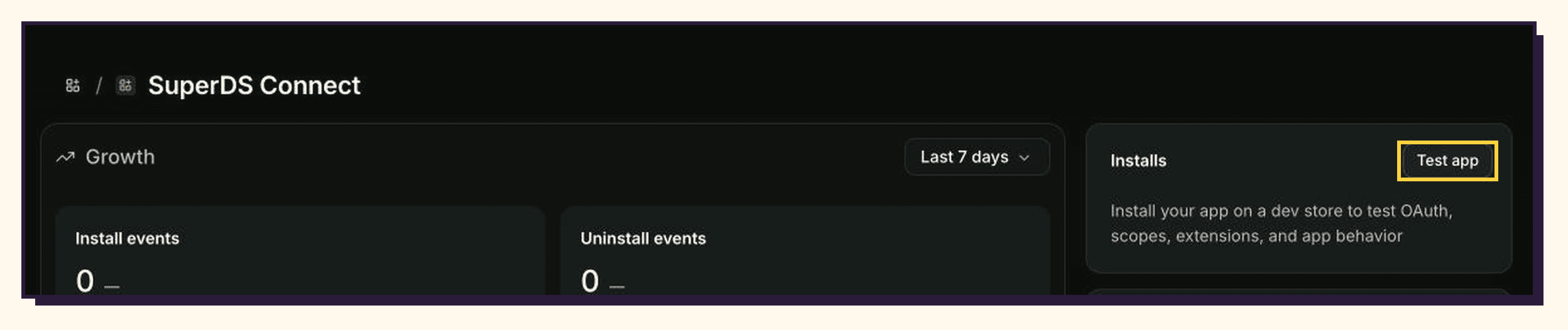
Open Overview in the left menu. In the Installs card, click Install app (on a development store the button reads Test app).
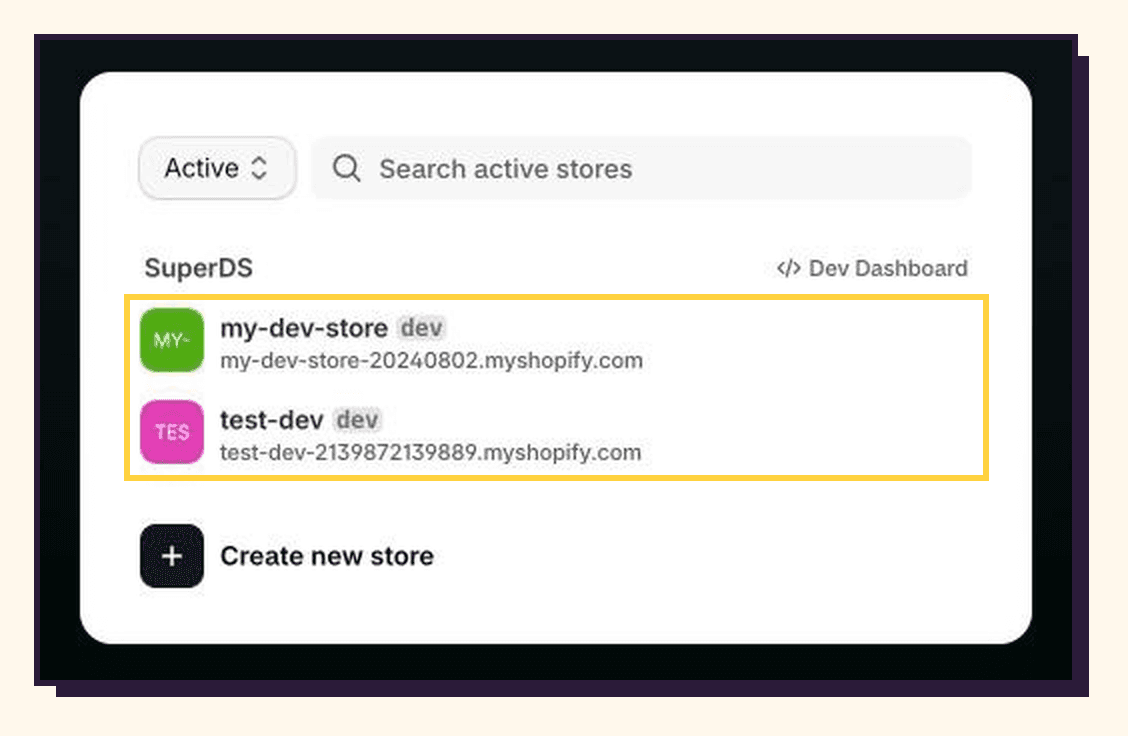
Pick your store.
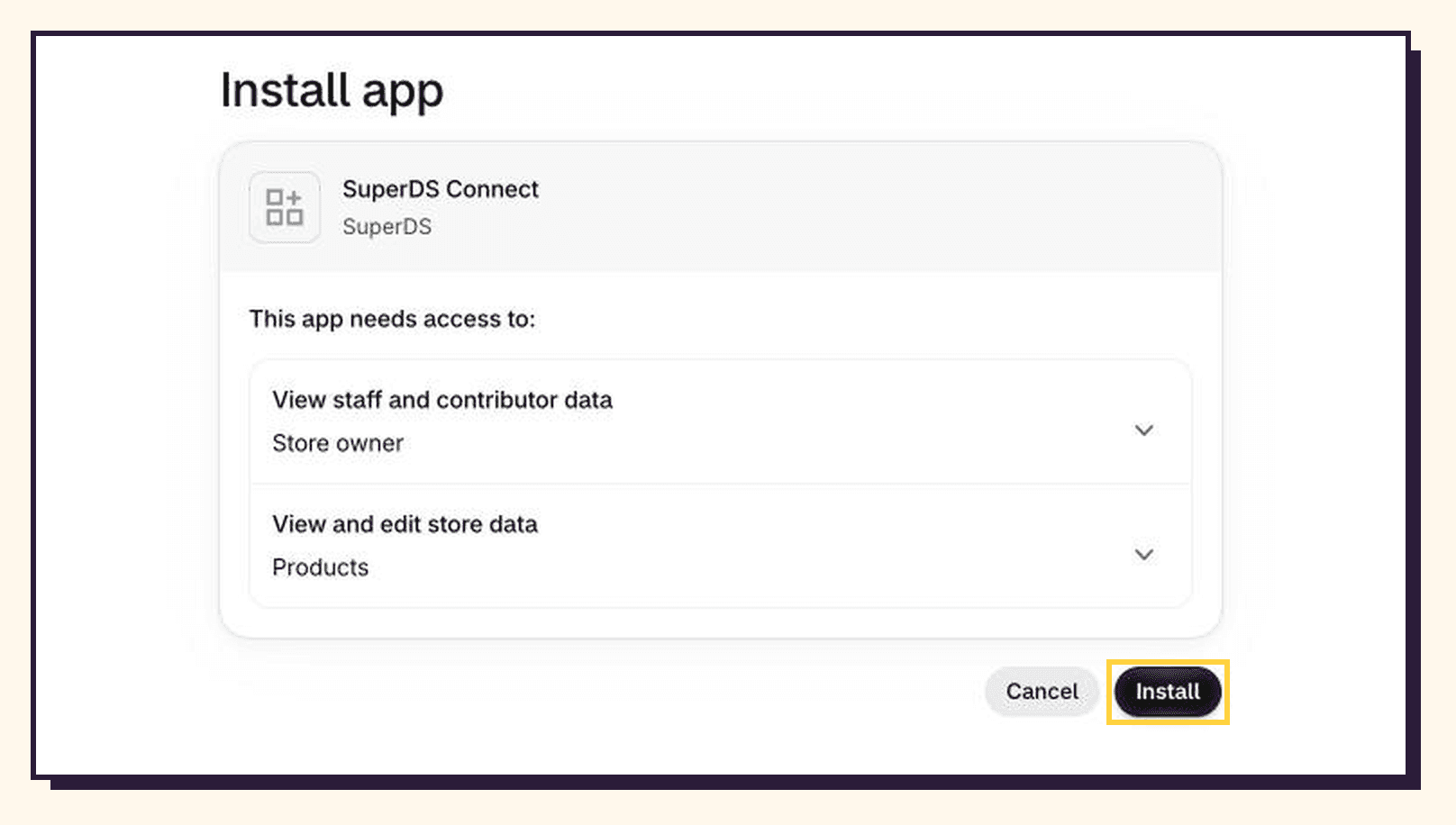
Shopify lists what the app can access (products, publications, inventory, locations and orders). Click Install.
4. Copy the Client ID and Client secret
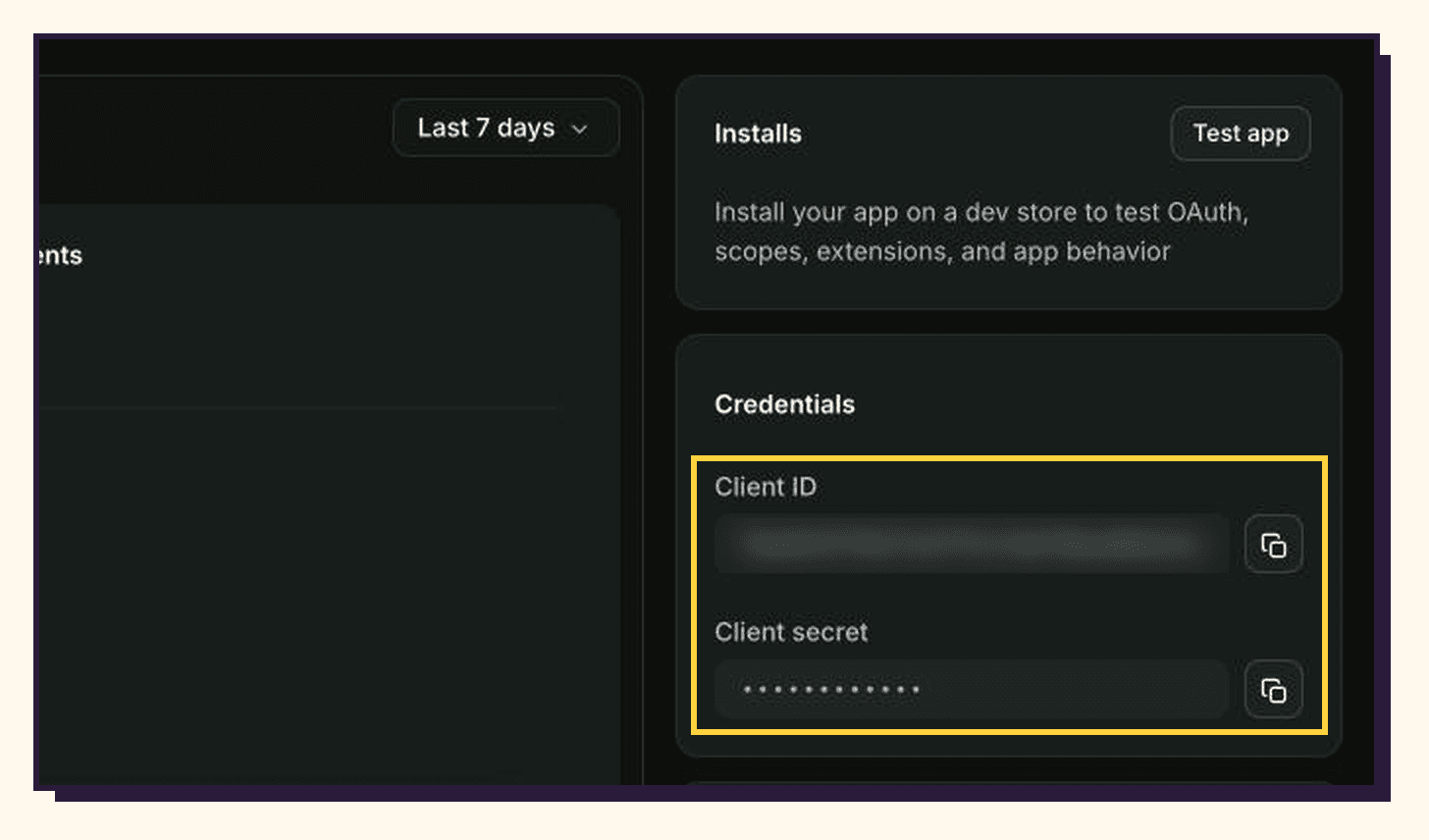
Back in the Dev Dashboard, on the app's Overview page, find the Credentials card. Use the copy buttons next to Client ID and Client secret. Shopify may ask you to confirm your login before it copies the secret.
5. Paste them into SuperDS
In SuperDS, open My Store, click Connect Store and fill in:
- Store address: your
.myshopify.comaddress, for examplemy-shop.myshopify.com - Client ID and Client secret from step 4
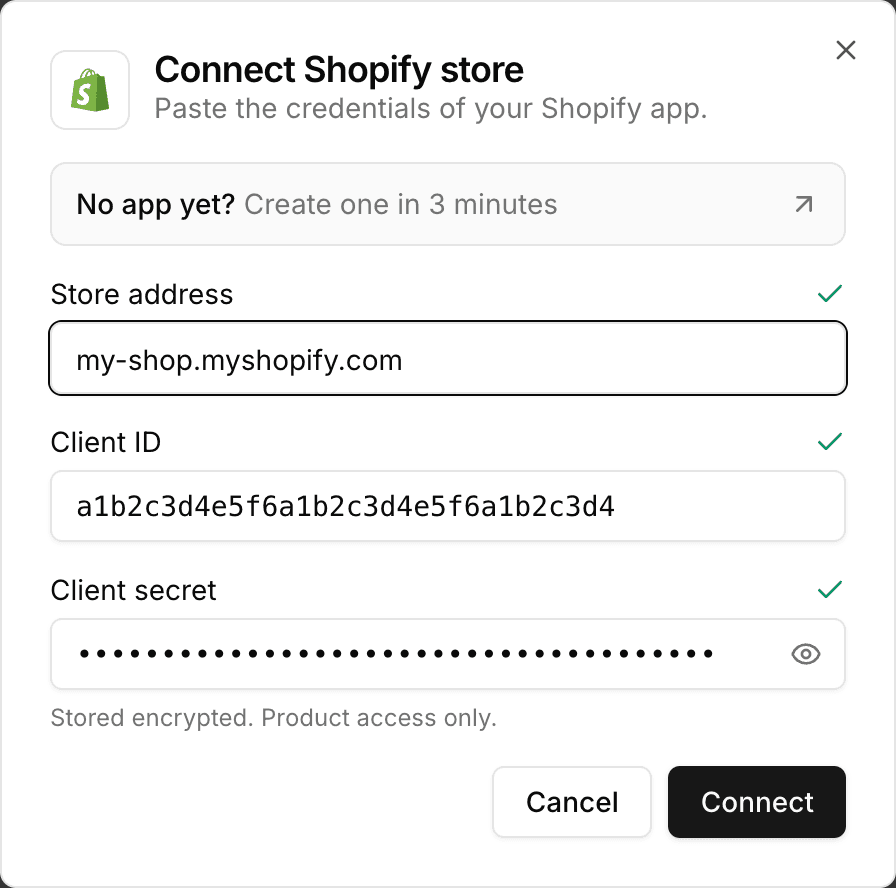
Click Connect. The store shows Connected and you can publish drafts to Shopify.
Treat the Client secret like a password. Paste it only into SuperDS. If it ever leaks, rotate it in the Dev Dashboard under the app's Settings, then reconnect.
Troubleshooting
"Shopify rejected these credentials"
Check the store address (it must be the .myshopify.com one, not your custom domain), copy both values again, and make sure you finished step 3. An app that is not installed cannot connect.
"This app and this store are in different Shopify organizations" The app was created under a different Shopify account than the one that owns the store. Create it again while logged in as the store owner.
"The app is missing access"
The scopes line was skipped or is missing a part. Open the app's Versions, create a new version with read_products,write_products,read_orders,write_inventory,read_locations,write_publications, release it, approve the new access in your Shopify admin, then connect again.
Orders show up without customer names or addresses Shopify decides by store plan whether an app you own receives customer details. SuperDS shows what Shopify shares; the order, product and amounts still sync.
How do I disconnect? Click Disconnect in My Store. To remove the app from Shopify too, uninstall it under Settings > Apps in your Shopify admin.
Ready to Scale Your Dropshipping Business?
Join thousands of successful dropshippers using SuperDS to automate their business. List products from 20+ suppliers with one click.