Reading Your Dashboard
Learn how to read the SuperDS dashboard, what each alert, number and chart means, and how to use them to decide what to do next in your store.
What the Dashboard Is For
The dashboard answers three questions every time you open SuperDS: is anything waiting on me, is my store growing, and what is selling. It always shows the store selected in the top-left store switcher.
1. Start With "Needs attention"
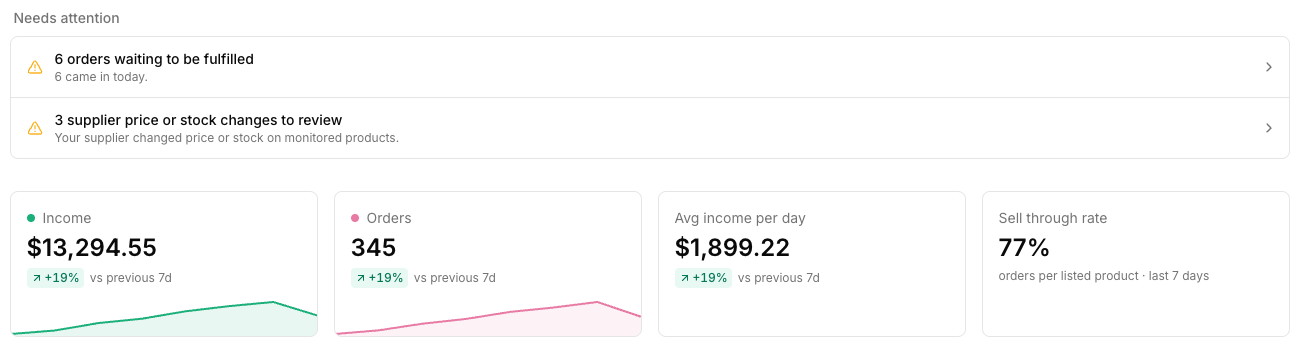
This list only appears when something needs you. Click a row to go to the page where you handle it.
- Your last payment failed: update your payment method on the Billing page to keep listing and monitoring.
- Orders waiting to be fulfilled: new orders that have not been shipped yet. The second line tells you how many came in today.
- Supplier price or stock changes to review: a supplier changed price or stock on a product you monitor. Review them before you sell at a loss or sell something that is out of stock.
The same counts appear as red badges next to Orders and My Products in the sidebar, so you can see them from any page.
2. Pick a Period
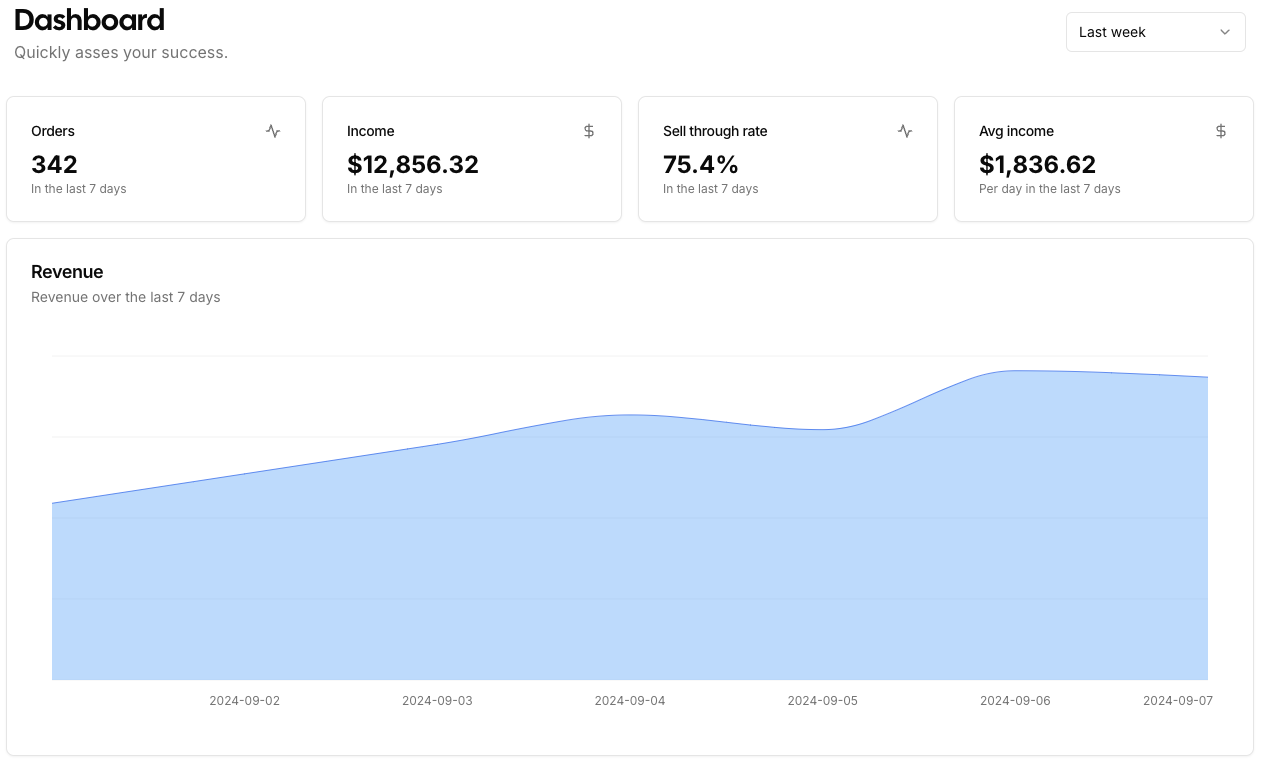
Use the selector in the top-right corner to switch between Last week, 30 days and 90 days. Every number, chart and list on the page follows it.
3. Read the Headline Numbers
- Income: total order value in the period.
- Orders: number of orders in the period. Click the tile to open the Orders page.
- Avg income per day: income divided by the days in the period.
- Sell through rate: orders in the period divided by your listed products.
Under each number is a small badge such as +19% vs previous 7d. It compares the period you picked with the same number of days right before it. Green means you are up, red means you are down. The thin line at the bottom of the tile shows the trend day by day.
4. Find the Days That Mattered
The Income and Orders charts show one point or bar per day. Hover a day to see its exact value. A dip on one day is normal. Several low days in a row is the signal to check your listings, prices and supplier stock.
5. See What Sells and Where
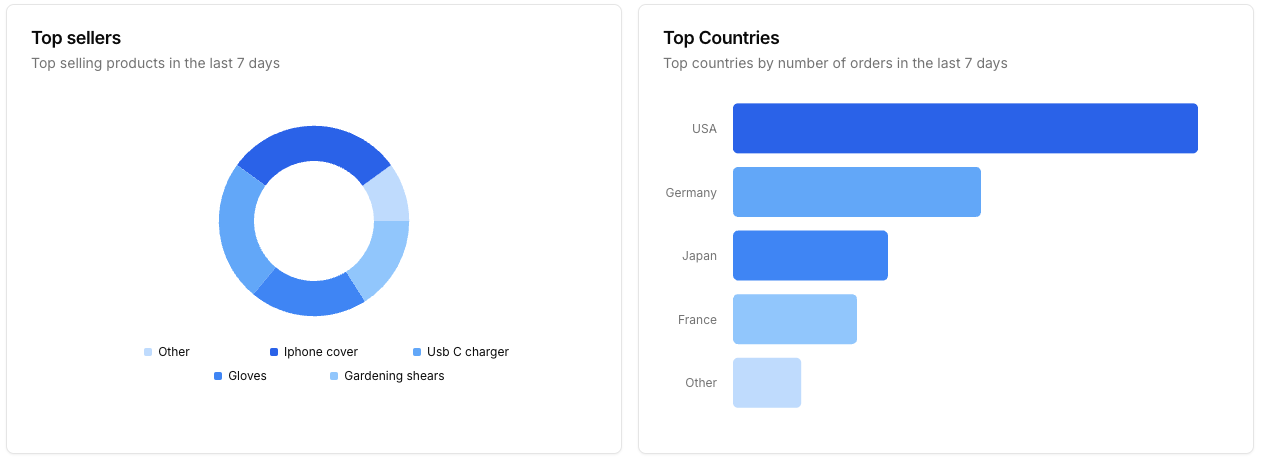
Top sellers ranks your products by units sold in the period. Top countries ranks where your buyers are, with each country's share of your orders. Use them to decide what to list more of and where to focus.
6. Plan Ahead
At the bottom, Upcoming Holidays lists the next shopping days and how far away they are, so you can list seasonal products in time.
Tips
- No data yet? Orders appear after your first Orders Sync. See the Orders Sync guide.
- Running several stores? Switch store in the top-left corner and the dashboard follows.
Ready to Scale Your Dropshipping Business?
Join thousands of successful dropshippers using SuperDS to automate their business. List products from 20+ suppliers with one click.