Price & Stock Monitoring
Learn how SuperDS automatically monitors supplier price changes and stock availability, so you can keep your eBay listings profitable and up to date.
Video Tutorial
Watch the full walkthrough of the Price & Stock Monitor:
What is the Price & Stock Monitor?
The Price & Stock Monitor is a built-in feature that automatically scans your listed products at their supplier source to detect price changes and stock availability updates. When changes are found, SuperDS flags them and suggests repricing actions so you can keep your eBay listings profitable and avoid selling out-of-stock items.
1. Enable Monitoring on Products
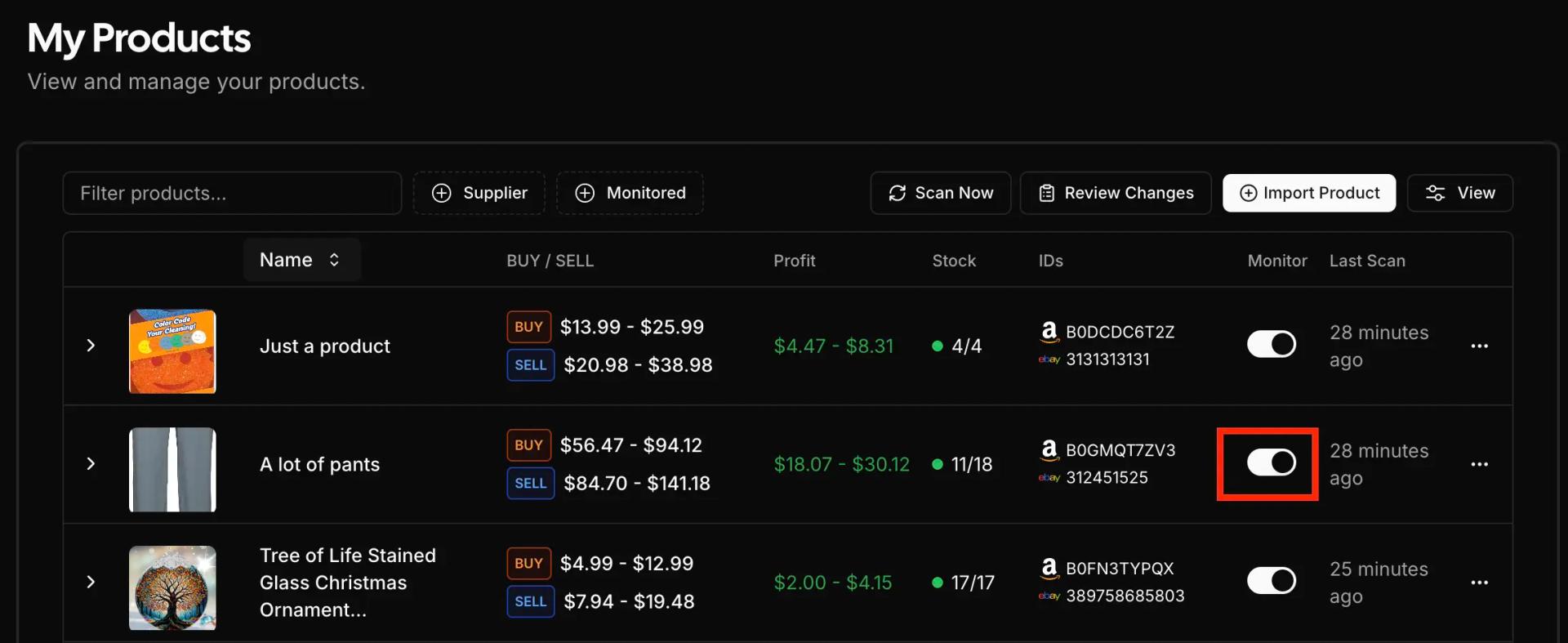
On your Products page, each product has a Monitor toggle. Turn it on for any product you want to track. Monitoring is available for Amazon and AliExpress sourced products.
2. Configure Monitor Settings
Navigate to Store → Monitor Settings to configure how the monitor behaves for your store. You can set:
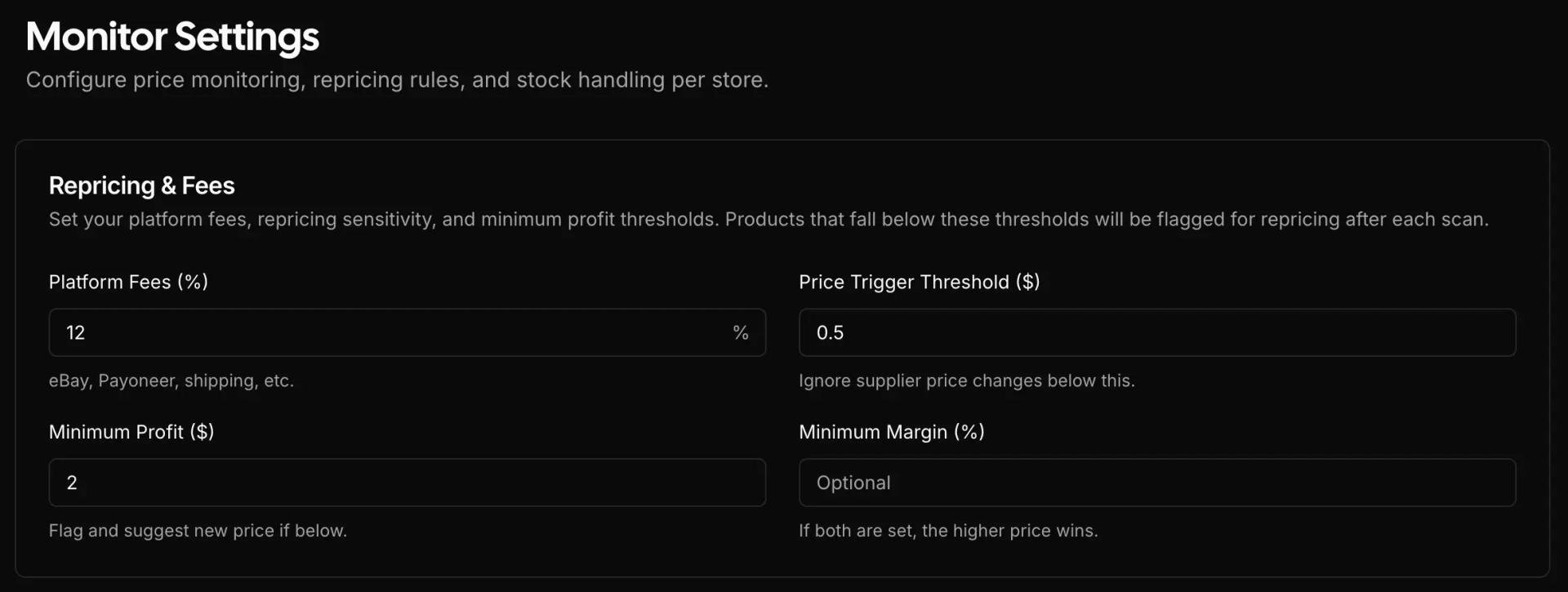
- Platform Fees (%) - Your total selling fees (eBay, Payoneer, shipping, etc.). Used to calculate profit margins.
- Price Trigger Threshold ($) - Ignore supplier price changes smaller than this amount. For example, set to $0.50 to skip minor fluctuations.
- Minimum Profit ($) - Your profit guardrail. When a supplier price changes, SuperDS uses this to calculate the recommended sell price that keeps you above this profit floor. Products that fall below are flagged for repricing.
- Minimum Margin (%) - Same as above, but as a percentage. When both are set, SuperDS picks whichever produces the higher sell price, ensuring you always meet the stricter threshold.
3. Stock Settings
- Out of Stock Action - What to do on eBay when a supplier product goes out of stock. Currently supports setting quantity to 0.
- Restock Quantity - The quantity to restore on eBay when a product comes back in stock.
4. Scanning Settings
- Parallel Tabs - How many browser tabs to open simultaneously during a scan. Higher values scan faster but use more system resources. Default is 5.
Running a Scan
To scan your monitored products:
- Open your Products page in the SuperDS dashboard
- Click the Monitor Scan button
- The system will first verify your extension is connected
- Once verified, the scan begins automatically
During the scan, you'll see:
- A progress bar showing overall completion
- The current product being scanned
- Success/Failed counters updating in real-time
The SuperDS extension must be installed and active in your browser for scanning to work. Do not close your browser while a scan is running.
You can minimize the scan modal and continue using your dashboard while the scan runs in the background.
Reviewing Changes
When the scan completes, you'll see a summary of detected changes:
- Price increases - The supplier raised their price
- Price decreases - The supplier lowered their price
- Out of stock - The product is no longer available at the supplier
- Back in stock - A previously out-of-stock product is available again
If changes are detected (or products fall below your profit thresholds), click Review Changes to open the review modal.
The Review Modal
The review modal shows all actionable items with full details:
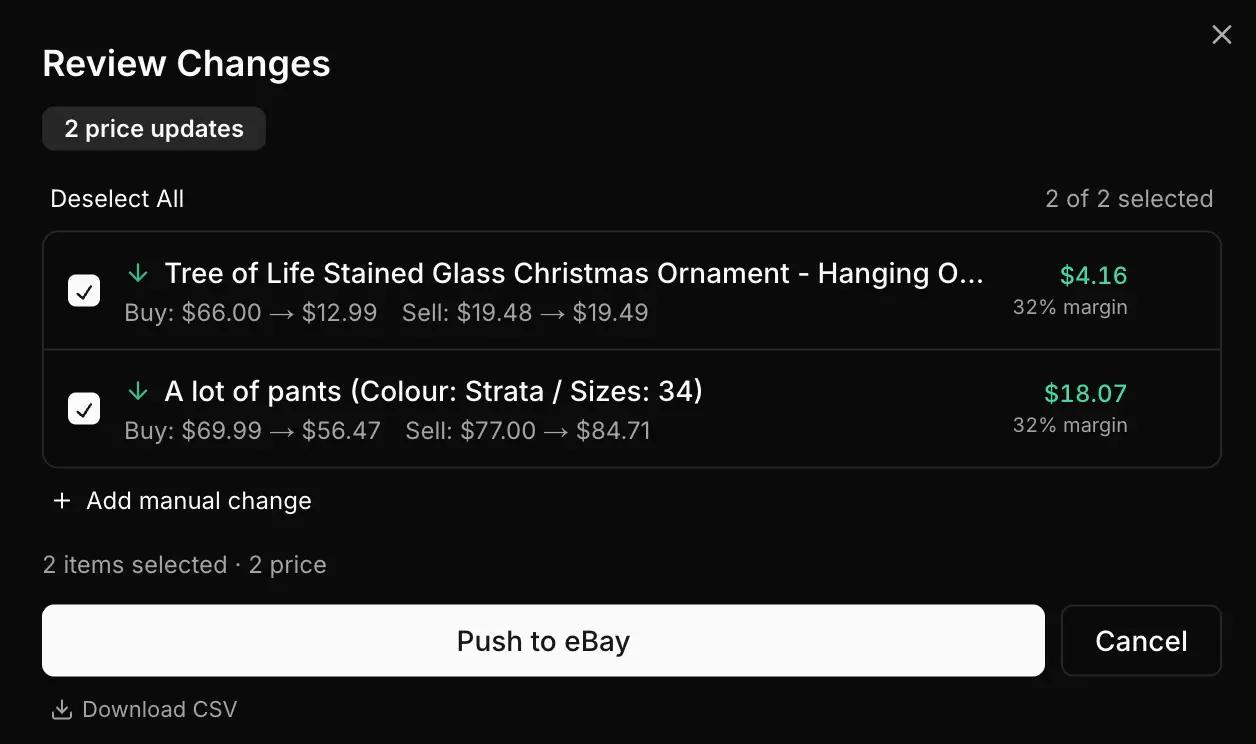
- Product name and variant info
- Buy price change (old → new supplier price)
- Recommended sell price based on your fee and profit settings
- Estimated profit and margin after the change
- Products below your minimum profit threshold are flagged with a warning
You can:
- Select/deselect individual items to include or exclude from the update
- Add manual changes - Pick any monitored product and set a custom price or quantity
- Remove items you don't want to act on
- Download CSV - Export the changes as a CSV file for your records
- Push to eBay - Apply all selected changes directly to your eBay listings through the extension
Pushing to eBay uses eBay's bulk revision system through the extension. The process may take a few minutes for large batches. You can minimize the modal while it runs.
Tips for Best Results
- Run scans regularly - Supplier prices can change frequently. Regular scans help you stay on top of your margins.
- Set realistic thresholds - A price trigger threshold of $0.50 helps avoid unnecessary repricing from minor fluctuations.
- Configure profit minimums - Set a minimum profit amount or margin percentage so SuperDS flags products that need attention, even when the price change alone is small.
- Review before pushing - Always review suggested changes before pushing to eBay. You can deselect items or adjust manually.
- Use parallel tabs wisely - More tabs means faster scans, but too many can slow down your computer. Start with 5 and increase if your system handles it well.
Get Started
Ready to keep your listings profitable and up to date? Head to your Products page, enable monitoring on your products, configure your settings under Store → Monitor Settings, and run your first scan.
With SuperDS's Price & Stock Monitor, you'll never miss a supplier price change or sell an out-of-stock product again.
Ready to Scale Your Dropshipping Business?
Join thousands of successful dropshippers using SuperDS to automate their business. List products from 20+ suppliers with one click.