Image Templates
Learn how to use SuperDS's built-in image template editor to add borders, overlays, filters, and adjustments to your product photos before listing.
How to Use Image Templates in SuperDS
The Image Templates feature lets you enhance your product photos directly inside SuperDS before uploading to eBay. You can add colored borders, overlay badge images (like "Free Shipping" or "Sale"), apply photo filters, and fine-tune brightness, contrast, and saturation. All edits are applied automatically to the main product image during upload.
Getting Started
Navigate to Store Settings > Uploader Settings in your dashboard. Scroll down to the Image Editing section. You'll see a two-column layout: editing controls on the left and a live preview on the right.
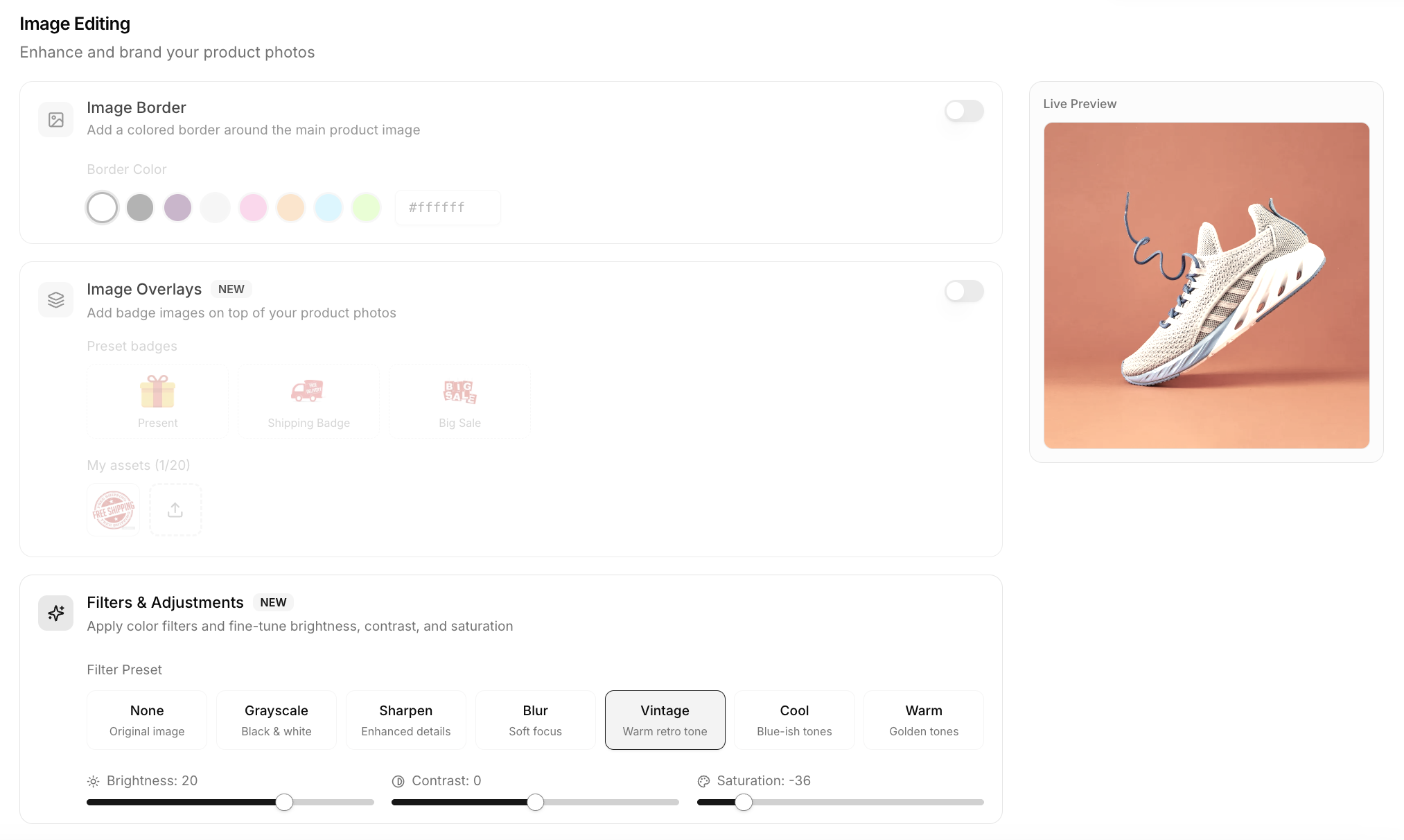
The preview updates in real time as you make changes, so you can see exactly how your product photos will look before saving.
Adding a Border
- Toggle Image Border on
- Pick a color from the preset swatches, or type a custom hex code
- The border appears as a colored frame around the entire image (including any overlays)
Borders help your listings stand out in search results by creating a clean, branded frame around your product photos.
Adding Overlays (Badges)
Overlays are badge images that get composited on top of your product photo. Common uses include "Free Shipping" badges, "Sale" banners, or your store logo.
Using Preset Badges
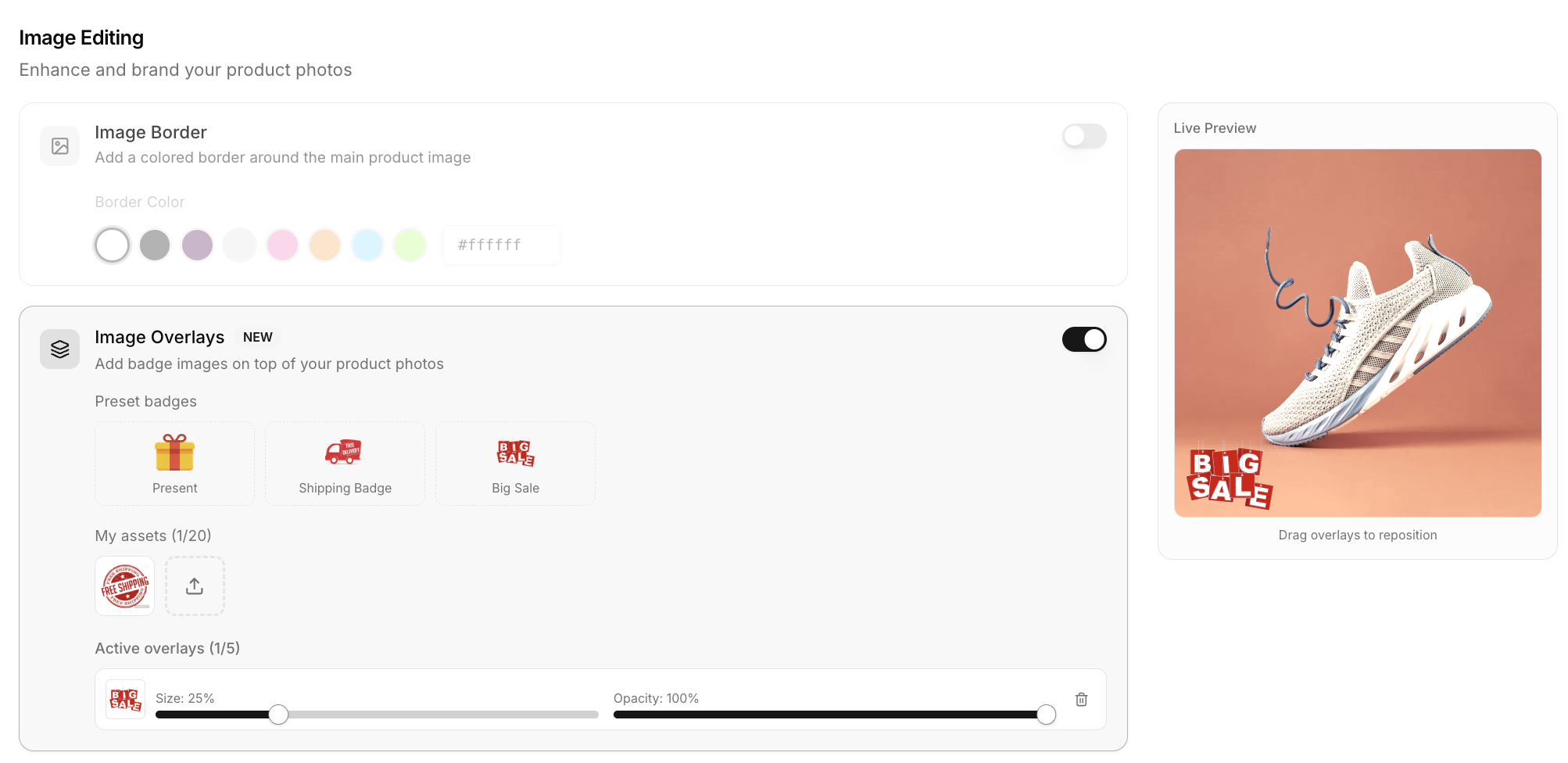
- Toggle Image Overlays on
- Click any preset badge (Free Shipping, Shipping Badge, Big Sale) to add it
- The badge appears on the preview. Drag it to reposition anywhere on the image
- Adjust Size and Opacity using the sliders in the overlay list
Uploading Custom Overlays
You can upload your own badge images (PNG, JPG, WebP, GIF, or SVG, up to 2MB each):
- Click the upload icon in the "My assets" section
- Select your image file
- It gets added to your asset library and placed on the preview automatically
- You can reuse uploaded assets across multiple saves. Delete them by hovering and clicking the X
You can add up to 5 overlays per image and store up to 20 custom assets in your library.
Positioning Overlays
Click and drag any overlay on the preview to move it. The position is saved as a percentage, so it scales correctly regardless of the original product image size.
Click an overlay in the list below to select it (highlighted with a blue ring on both the list and the preview). Adjust size and opacity with the sliders.
Applying Filters
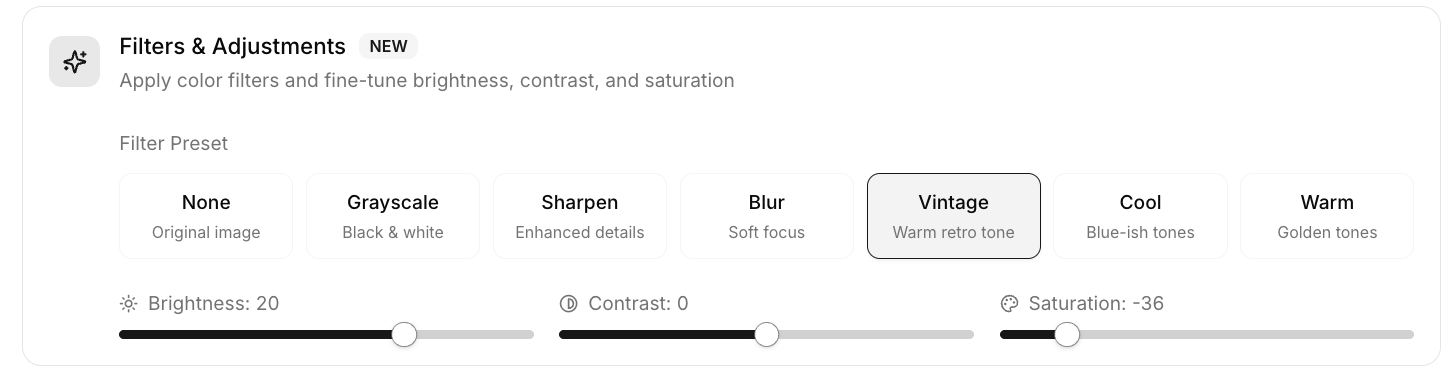
Choose from 7 filter presets:
| Filter | Effect |
|---|---|
| None | Original image, no changes |
| Grayscale | Converts to black and white |
| Sharpen | Enhances fine details and edges |
| Blur | Adds a soft focus effect |
| Vintage | Warm, desaturated retro tone |
| Cool | Blue-tinted, slightly desaturated |
| Warm | Golden, slightly saturated tones |
Click any filter tile to apply it. The preview updates instantly.
Fine-Tuning Adjustments
Use the three sliders below the filter presets to dial in the exact look:
- Brightness (-50 to +50): Make the image lighter or darker
- Contrast (-50 to +50): Increase or decrease the difference between light and dark areas
- Saturation (-50 to +50): Boost or reduce color intensity
These adjustments stack with the selected filter, giving you precise control.
How It Works During Upload
When you upload a product (via 1-Click Lister or Bulk Import), SuperDS automatically:
- Applies your filter and adjustment settings
- Composites your overlay badges at the saved positions
- Draws the border frame on top
- Uploads the processed image to eBay
All edits apply to the main product image only (the first photo). Remaining photos are uploaded as-is from the supplier.
Tips for Best Results
- Use PNG overlays with transparent backgrounds for the cleanest look
- Keep badge sizes between 15-30% so they're visible without covering the product
- Position badges in corners to avoid obscuring the product itself
- Test with the live preview before saving. The preview closely matches the final output
- Use borders sparingly. A thin, neutral border (white or black) can make listings pop without looking cluttered
FAQ
Q: Do filters affect all my product images? No. Filters, adjustments, borders, and overlays only apply to the main (first) product image. All other images are uploaded unchanged.
Q: Can I use my own logo as an overlay? Yes. Upload any PNG, JPG, WebP, GIF, or SVG file (up to 2MB) as a custom overlay asset. PNG with transparency works best.
Q: What happens if I turn off overlays after saving? Your overlay configurations are preserved but not applied during upload. Turn the toggle back on to re-enable them.
Q: Is there a limit on custom assets? You can store up to 20 custom overlay images in your asset library. Delete unused ones to free up space.
Ready to Scale Your Dropshipping Business?
Join thousands of successful dropshippers using SuperDS to automate their business. List products from 20+ suppliers with one click.